Review the audit log
Last updated 14 July 2026
The Audit Log records audited actions — currently, removing and restoring user accounts — so there's a clear record of who did what, to whom, and why.
Before you start
- You need to be a national administrator (
rootoradmin).
View the log
Go to Admin → Audit Log. Entries are listed newest first, showing:
- When the action happened — shown as a relative time (for example, 2 hours ago); hover over it to see the exact date and time;
- Who did it — a link to that person's details (or system for automated actions, like the cleanup of abandoned sign-ups);
- the Action (for example, deleted or restored);
- the Subject it was done to — shown as their name and email, linked to their details;
- the Reason, where one was given.
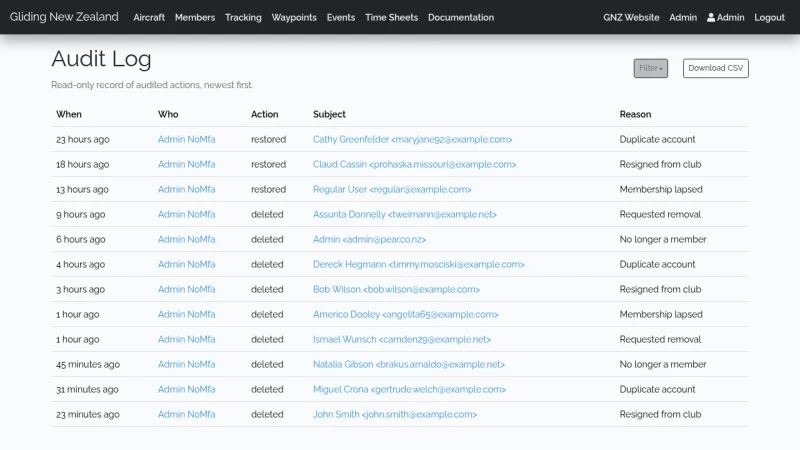
Who and Subject are clickable — they open that user's details page (see below), which works even for accounts that have since been removed.
Filter by action
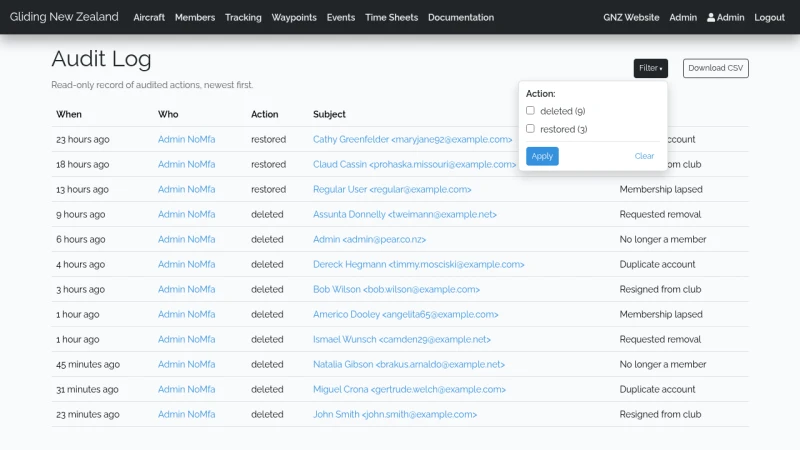
Use the Filter button to narrow the list to particular actions. Each action is listed with the number of matching entries in brackets — for example, deleted (9). Tick one or more and choose Apply; Clear removes the filter and shows everything again.
View a user's details
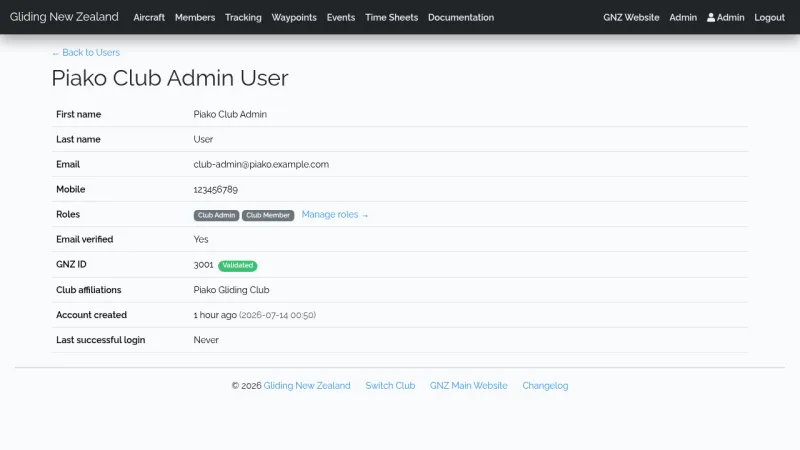
Click a name in the log — the Who or the Subject — or an email address on the Admin → Users screen, to open that user's details page: a read-only summary of the account, showing their roles, GNZ membership, club affiliations (primary club first), when the account was created, their last successful login, and — if the account has been removed — who removed it, when, and why. It works for removed accounts too, so you can always trace an audit entry back to who it was about.
Download as CSV
Click Download CSV to save the whole log as a spreadsheet-friendly file — handy for record-keeping or an offline review.
Good to know
- The log is read-only: there's no way to edit or remove entries from this screen.
- Entries are kept indefinitely — they aren't automatically cleared out — so the history stays complete.